6E Club App: The Installed Web App, From Home Screen to First Room
Official 6E Club guideReviewed
The 6E Club app is the same set of free browser games, installed from your browser so that it opens from its own icon in its own window. There is no store listing and no file to fetch. Chrome, Safari or Edge does the installing, and the app is ready in under a minute. Inside are all four timed rooms, Colour, Number and Big/Small picks, the results board, your rank badge and the “Refill coins” button.
This guide goes further than the quick steps. It shows where the install option hides in each browser, what every part of the app screen does, how the app differs from a normal tab, how updates arrive, where your account is kept, and how to take the app off a phone cleanly.
One Site, Opened Like an App: What the 6E Club App Is
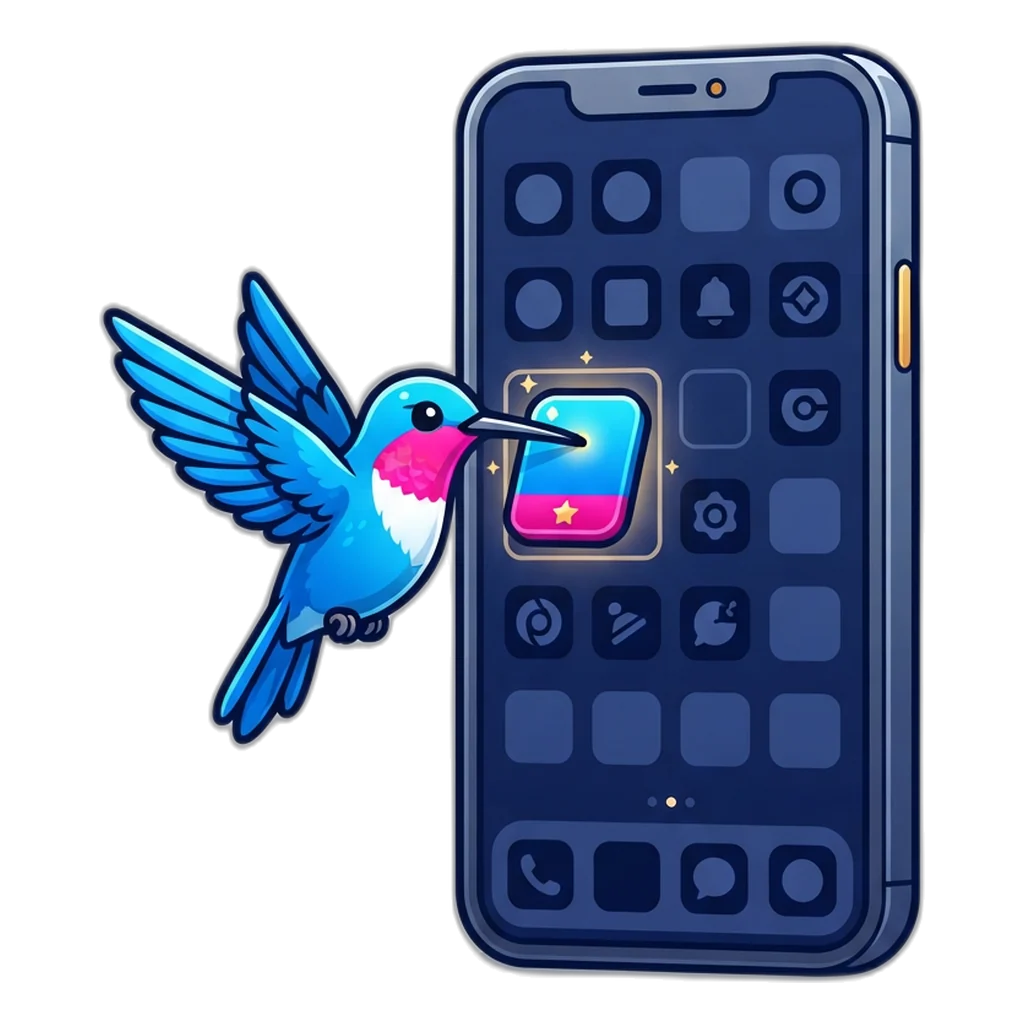
On most phones, “app” means something from a store. Here it means something simpler. The site carries a small settings file, called a web app manifest, that tells your browser the name, the icon, and that the games should open in a window of their own. When you choose the install option, the browser reads that file and places the 6E Club app on your home screen or desktop.
This kind of app is called a progressive web app; the Wikipedia overview of progressive web apps explains the idea. Your browser still does all the work: nothing is added to your phone except an icon, and no permission screen ever appears.
Two facts are worth knowing before you install. First, the 6E Club app is not listed on Google Play or the App Store, and no APK file has ever been published for it. Second, it has no offline mode: it needs an internet connection to open, just like the website. The app and the 6E Club home page with every guide are the same pages, so you never have to choose between them.
Why install at all?
Installing changes how you reach the games, not what they are. It saves typing the address and gives the timer and pick panel more space on a small screen. If you prefer fewer icons, a normal tab does the same job.
Installing the 6E Club App on Each Kind of Device
The install option sits in a different place in each browser, and its label can change after a browser update. Open the site, let the page finish loading, then look for the item named in the table.
| Device and browser | Where to look | What the item may be called | What you end up with |
|---|---|---|---|
| Android, Chrome | The three-dot menu beside the address bar | “Install app” or “Add to Home screen” | An entry in the app drawer and on the home screen, opening in its own window |
| Android, Samsung Internet | The menu button in the bottom bar | “Add page to”, then “Home screen” | A home-screen icon that opens the games |
| iPhone or iPad, Safari | The Share button (a square with an up arrow) | “Add to Home Screen” | An icon that opens without the Safari toolbar |
| Laptop or desktop, Chrome | The install icon at the right end of the address bar, or the menu | “Install 6E Club” or “Install page as app” | A desktop or Start menu entry with its own window |
| Laptop or desktop, Edge | The menu, under Apps | “Install this site as an app” | A desktop, taskbar or Start menu entry |
On an Android phone
Chrome is the smoothest choice, because it adds the 6E Club app as a proper launcher entry that shows up in the app drawer and in recent apps. If the menu offers only “Add to Home screen”, you get a shortcut to the same rooms. The install item can take a few seconds to appear after the page loads.
Before you tap install, look at the address bar once. The official 6E Club games site is 6eclub.games. Once the app is on your phone, its window hides the address, so this is the one moment to check it.
On an iPhone or iPad
Apple allows this only through the Share sheet in Safari. Open the site, tap Share and pick “Add to Home Screen”; on recent iOS versions it can sit under a “More” row. Apple’s help page on placing a website on your Home Screen shows each screen. Read the storage section below before you rely on an account made in a Safari tab.
On a laptop or desktop
Chrome and Edge both install web apps on Windows, macOS and ChromeOS. The app gets its own window that you can pin to the taskbar or dock. A wide window shows the room and the results side by side, which suits the calmer 3-minute and 5-minute rooms.
If a browser has no install option, a bookmark is the fallback; the short download overview compares bookmarks, tabs and icons.
A Tour of the 6E Club App Screen
Tap the icon and the app opens at the site’s home page; one tap on Play takes you to the game rooms screen. That screen is where you will spend most of your time in the 6E Club app, so here is what each part does, roughly from top to bottom on a phone.
| Part of the screen | What you see | What it is for |
|---|---|---|
| Room switcher | Four tabs: 30 sec, 1 min, 3 min and 5 min | Moves between rooms; all four keep running whichever one you watch |
| Period timer | The period number and a countdown | Shows the time left; picks close in the last 5 seconds |
| Pick panel | Green, Red and Violet, the digits 0 to 9, Big and Small | Chooses what your coins go on in this period |
| Chip size and quantity | Chips of 5, 25, 100 or 500, and a count from 1 to 999 | Sets how many play coins one pick uses |
| “Lock in pick” | The confirm button on the pick sheet | Sends the pick into the current period |
| Results, Digit chart, My picks | Three tabs below the room | Past results, how often each digit came up, and your last 200 picks |
| Player panel | Your balance, rank badge and progress bar | Keeps track of your play coins and rounds played |
| “Refill coins” | A button beside your balance, with a confirm step | Sets the balance back to 5,000 play coins at any time |
| “Rules and returns” | A panel with the full rules | Lists what each pick returns per 100 coins |
Reading the three tabs
Results lists each finished period with its digit, colour and size. Digit chart counts how often each digit has been drawn and how long since it last appeared. My picks keeps your own record. The chart is a record of what happened, nothing more: in each new period every digit still has exactly a 1 in 10 chance.
Every pick works the same in the app as in a tab; see the guide to every pick type and room for the full returns.
Your rank badge
The badge grows with rounds played: Rookie at the start, then Bronze at 15, Silver at 60, Gold at 200, Platinum at 500 and Diamond at 1,200. It is only a record and changes no return.

App Window or Browser Tab: The Differences That Matter
The installed 6E Club app and a browser tab load exactly the same pages, with the same rooms and the same draws. What changes is the frame around them, and two points matter most: the hidden address bar and where the account is stored.
| Point | Installed app | Browser tab |
|---|---|---|
| How it opens | From its own icon, straight into a full window | From the browser, among your other tabs |
| Address bar | Hidden, so you cannot read the address while you play | Visible, so you can check the address at any time |
| Screen space | More room for the timer and the pick panel | Some space goes to the toolbar and tab strip |
| App switcher | Has its own card, like other apps | Sits inside the browser’s card |
| Notifications | None; the site sends none | None; the site sends none |
| Works with no internet | No | No |
Because the app hides the address, open the games only from the icon you made yourself. A link “to the app” in a message opens a browser page, not your installed copy, and that page could be anything.
Signing in works the same in both. If you are unsure which window holds your username, read the guide to finding and opening your account.
How Updates Reach the 6E Club App
Store apps wait for you to tap Update. The 6E Club app has no such step. The site keeps no stored copy of itself on your phone, so every time you open the icon, the browser fetches the current pages. When the rooms, the rules panel or a guide change, you see the new version the next time you open the app.
So there is never a newer file to hunt for. A message telling you to “update your 6E Club app” with a download is not about this app. Our page on checking any APK file before it is installed explains what such files really carry.
If the app looks out of date
- Close the app fully from the app switcher, then open it again from the icon.
- On a laptop, press Ctrl + R or F5 inside the app window to reload it.
- On Android, check that Chrome itself is up to date in the Play Store, since Chrome runs the app.
If a screen still looks broken after a reload, the step-by-step fixes for game screen problems start with the ones that keep your account safe.
Storage, Mobile Data and Where the App Keeps Your Account
Nothing tied to your account (coins, rank or pick history) is kept on a server. They sit in the browser’s local storage, a small space that any website can use on your device; the MDN page on browser local storage explains it. The app reads the storage of the browser that installed it.
- Android, installed from Chrome: the app shares Chrome’s storage, so an account made in a Chrome tab is waiting in the app, and the other way round.
- iPhone and iPad: a Home Screen app can keep storage of its own, apart from Safari. Decide where you will play and make your account there.
- Laptop: the app shares storage with the browser profile it came from. Another profile, or another browser, starts empty.
- Any device: accounts never sync. A phone and a laptop each keep their own account, coins and rank.
There is no password reset, because nothing is held online; a forgotten password means a new account. Tips on choosing one you will remember are in the sign-up walkthrough.
How much space and data the app uses
Installing adds an icon, not a program, and the account data is a small amount of text. Mobile data goes on loading pages when you open the app or move between guides. The draws happen inside your browser, so watching a room streams no video and pulls down no large files.
Watch out for cleaner apps: one set to clear Chrome’s site data removes your account too. Add the browser to its safe list or turn that option off.
Removing the 6E Club App, or Changing Phones
Taking the app off is as quick as putting it on. What happens to your account depends on the device.
To remove the app
- Android: press and hold the icon, then choose Uninstall or Remove. Your account normally stays, because it lives in Chrome’s storage rather than in the icon.
- iPhone or iPad: press and hold the icon, tap the remove option and confirm. If the icon had its own storage, the account made inside it goes too.
- Laptop: open the app, use its own menu and choose the uninstall item.
To remove the account itself, tap “Delete account” inside the game before you uninstall. That wipes the coins, rank and history from the browser. Removing only the icon leaves them in place on Android and on a laptop.
Moving to a new phone
Nothing carries across. On the new phone, install the app again and make a fresh account; you start at 5,000 play coins with the Rookie badge. Your old rank and history stay on the old phone until you delete them there.
Your First Ten Minutes Inside the 6E Club App
Here is a calm first session once the icon is in place. It starts in a slower room, so you have time to read the screen.
- Open the icon. From the home page, tap Play to reach the rooms.
- Tap “Create my account”. Choose a username of 3 to 20 characters (lowercase letters, numbers or underscore), a password of at least 6 characters, and tick the 18+ box. No phone number or email is asked.
- Look at your player panel: 5,000 play coins and the Rookie badge.
- Switch to the 3-minute room and open “Rules and returns” while the clock is still high.
- Tap one pick, for example Big. On the pick sheet, choose the 5-coin chip with a quantity of 1, then tap “Lock in pick” before the last 5 seconds.
- When the digit lands, open the Results tab, then My picks, and see how your pick settled.
- Try the 30-second room once the screen feels familiar; it runs six periods to the 3-minute room’s one.
- Finish with “Sign out” if other people use your phone.
Big or Small returns 2x, so 5 coins come back as 10 when the pick matches and are gone when it does not. Over many rounds Big or Small averages 100 coins back per 100 used and every other pick averages less, so no pick gets ahead. Treat the balance as a score; “Refill coins” sets it back to 5,000.
The rooms are running now: open a room in the app or in a tab and follow the steps.
Install Later, Play a Room Now
The web app and a browser tab open the same rooms. Make a free account, start with 5,000 play coins, and add the icon whenever it suits you. Adults 18+ only.
Limits for an Icon That Is One Tap Away
An installed app removes the small pause of typing an address, and that pause often stops a quick look from becoming an hour. Decide how long a session lasts before you open the icon. Thirty minutes in the 5-minute room is six periods; in the 30-second room it is sixty.
Keep the icon in a folder on your second home screen, and use your phone’s own screen-time tools to cap the day. If play starts to feel like something you need rather than choose, the free Tele MANAS helpline on 14416 is open to talk at any hour.
Adults 18+ only. Play coins on 6E Club are a free game balance with no price and no cash value, and every result is a fresh random draw that nobody can see in advance. Online money games have been against the law across India since 1 May 2026 (Promotion and Regulation of Online Gaming Act, 2025). See the app screen-time tips for time limits, breaks and free help.
App Questions
Can I play in the 6E Club app without an internet connection?
No. The app has no offline mode. It loads the pages from the site each time you open it, so it needs mobile data or Wi-Fi, like any website.
Why does my Chrome menu not show “Install app”?
Let the page finish loading, then open the menu again; the item can take a few seconds to appear. Some Chrome versions show only “Add to Home screen”, which gives a shortcut to the same games. Incognito tabs do not offer it at all.
Does the 6E Club app send notifications or ask for permissions?
No. It asks for no permissions: no contacts, SMS, location, camera or files. The site sends no notifications either, so the icon will never buzz you to come back to a room.
Can two people share the installed app on a family phone?
Yes. Each person creates their own username inside the same app, with separate coins, rank and history. Tap “Sign out” before you hand the phone over.
If I clear my browser, does the installed app keep my account?
On Android and on laptops, no. The app uses the same browser storage, so clearing that browser’s site data removes the account from the app as well. On iPhone the Home Screen app may keep separate storage, but deleting the icon can remove that account instead.
How do I know the app I installed is the right site?
Check the address bar before you tap install, because the app window hides it afterwards. Inside, the real games never ask for a phone number, OTP, UPI ID or payment. If an app asks for one of those, remove it and install again from an address you checked yourself.
The 6E Club App in a Few Lines
The 6E Club app is the website installed from your own browser: Chrome’s install item on Android, the Share sheet in Safari on iPhone, or the install icon in Chrome and Edge on a laptop. It opens in its own window, asks for no permissions, updates itself every time you open it, and needs an internet connection to run.
Your account stays with the browser that installed the 6E Club app, so on iPhone pick one place to play. Remove the icon whenever you like, use “Delete account” if you want the data gone, and keep each session short and planned.