6E Club Login: Find Your Account and Sign In to the Games
Official 6E Club guideReviewed हिंदी में पढ़ें
A 6E Club login is short: a username, a password and one button. The part that trips people up comes earlier. Your account is not kept on a server somewhere. It sits inside the one browser, on the one device, where you created it. Sign in from that browser and the rooms open in seconds. Sign in from anywhere else and the form will say it does not know you.
This guide is the map. It shows how to find the browser that holds your account, how to get back to it in one tap, what each message on the sign-in screen means, what happens to a lost password, and how to check you are on the real page before you type. The working form itself is on the sign-in page for the free games.
Where Your 6E Club Login Is Kept
Most sites check your details against a database far away. This one does not. When you register, the browser on your device saves the account in its own small storage area, called local storage. Your coins, rank and pick history are saved there too. Nothing about you is sent over the internet.
That design has a clear upside: there is no account database to leak, no phone number on file and no email list. It also has one rule you need to remember for every 6E Club login. The account belongs to a single browser on a single device. It does not follow you to a new phone, a different browser app, or a friend’s laptop.
So when sign-in fails, first ask: “Am I in the same browser where I made this account?”
Find the Browser That Knows You
Think back to the day you registered. Which device was in your hand, and which icon did you tap to open the site? Many Android phones have two or three browsers installed: Chrome, the maker’s own browser (Samsung Internet, Mi Browser and so on) and sometimes another one that came with an app. iPhones may have Safari plus Chrome. Each one is a separate box with separate storage.
Also check how the site was opened. A link tapped inside a messaging or social app often opens in that app’s own built-in browser, not your main one. An account made there can be hard to find later. If you suspect that happened, open the same app, tap the same kind of link and try your 6E Club login there.
| Where you made the account | Where you are signing in now | Result |
|---|---|---|
| Chrome on your phone | Chrome on the same phone, normal tab | Opens. This is the right place. |
| Chrome on your phone | Samsung Internet or Firefox on the same phone | Not found. Different browser, different storage. |
| Chrome on your phone | Chrome on a laptop, even with the same Google account | Not found. Accounts never sync between devices. |
| A normal tab | A private or incognito tab | Not found. Private tabs start empty and forget everything on close. |
| A private or incognito tab | Any tab, later | Gone. It was deleted when that private window closed. |
| Your usual browser | The same browser after “Clear site data” | Gone. Clearing the data removes every account in it. |
If none of the rows match and the account still will not open, it may simply be lost. That is not a dead end: making a fresh one takes about a minute, and the guide to the 6E Club register form walks through each field.
Signing In, Start to Finish
Once you are in the right browser, the 6E Club login itself is quick. Here is what happens on the form, in order.
- Open the 6E Club login form in the browser that holds your account. Use a bookmark or tile if you have one (see the next section).
- Type your username. Capitals do not matter here, because the form turns every username into lowercase before it looks for it.
- Type your password. This part is exact: capital letters, numbers and symbols must match what you chose. Tick “Show password” if you want to check what you typed, but only when nobody is looking over your shoulder.
- Tap Sign in. The browser checks your password against the saved hash on the device. No data leaves the phone, so this works even on a weak signal once the page has loaded.
- Land in the games. You are taken straight to the rooms, with your coins, rank and pick history where you left them.
If you were already signed in, the page shows a small card instead of the form, naming the account with one button to play and one to sign out. It is a quick way to check whose account a browser is using.
Phone keyboards cause many failed sign-ins: an automatic capital at the start, a space after autocorrect, or a zero swapped for the letter O. Tick “Show password” once and look closely. On a laptop, check Caps Lock.
Bookmarks and Home-Screen Tiles for a One-Tap 6E Club Login
The simplest way to avoid the “wrong browser” problem is to never go looking for the site again. Save a shortcut from inside the browser that holds your account, and every 6E Club login after that starts in the right place.
- Bookmark. In Chrome or most Android browsers, open the menu and tap the star. On a laptop, press Ctrl+D (Cmd+D on a Mac). Save the sign-in page or the games page.
- Android home screen. In Chrome, open the menu and look for “Add to Home screen” or “Install app”. The tile opens the site in the same browser storage as Chrome, so your account is there.
- iPhone home screen. In Safari, tap Share, then Add to Home Screen. One warning: on iPhones a home-screen tile can keep its own storage, separate from Safari. If you plan to play from the tile, open the tile first and make or use the account from there.
None of these shortcuts is an app download. There is no file to install, and nothing to update. The notes on downloads and home-screen shortcuts explain why any “6E Club APK” file you see elsewhere did not come from this site.
What the Sign-In Screen Is Telling You
Each short message on the form points to a different cause. The table lists every message you can meet during a 6E Club login, with the plain meaning and the next step.
| You see | What it means | Try this |
|---|---|---|
| “Type your username.” | The username box was empty when you tapped Sign in. | Type the name you chose at sign-up. |
| “Type your password.” | The password box was empty. | Type the password, then tap Sign in again. |
| “That name and password do not match an account in this browser.” | This browser has no account with that name, or the password does not match. The form gives the same message either way, on purpose. | Check the password’s capitals first, then check you are in the right browser (table above). |
| A note that site storage is switched off | The browser is blocking local storage, often because of a privacy setting or a private window. | Use a normal window, or allow site data for this site in browser settings. |
| A note that the browser switched off a safety tool | The page could not use the browser’s built-in tools that check passwords. | Update the browser, and make sure the address starts with https. |
| “Already signed in” | A session is already open in this browser. | Tap the play button, or Sign out first if it is not your account. |
Why not say which part was wrong? That would help anyone guessing at someone else’s account on a shared device. One neutral message gives nothing away.
If a message you see is not on this list, or the page looks broken, the 6E Club help desk guide for account and display problems has fixes for blank screens, frozen timers and old browsers.
A Lost Password Has No Reset Link, and That Is Deliberate

Many sites send a reset link by email or SMS. This one cannot, because it never asked for your email or phone number in the first place. There is nowhere to send a link and no server holding your details.
Your password is not even saved as text on your own phone. At sign-up, the browser mixes it with a random value called a salt, then turns the result into a fixed code with SHA-256. Only that code is kept. At each 6E Club login, the browser repeats the same steps with what you type and compares the two codes. Nobody can turn the code back into your password, including the people who built the site.
What to do if you cannot remember it:
- Try the passwords you commonly use, paying attention to capital letters and the Caps Lock key.
- Check your browser’s saved passwords, if you allowed it to save one when you registered.
- If it is truly gone, make a new account in the same browser with a different username. You start again with 5,000 play coins and the Rookie rank, and the tips on choosing a password you will remember help it stick this time.
The old account sits unused and harmless. The coins have no cash value and ranks bring no perks, so nothing real is lost when you start fresh.
What a 6E Club Login Saves on Your Phone
It is fair to ask what a website keeps about you. Here the answer is short, and all of it stays on the device. The privacy policy for this site sets out the same points in full.
| Item | Stored where | Removed by |
|---|---|---|
| Your username | This browser’s local storage | Delete account, or clearing site data |
| Password check code (salted SHA-256 hash) | This browser’s local storage | Delete account, or clearing site data |
| “Signed in” marker for this browser | This browser’s local storage | Sign out, or clearing site data |
| Play coins, rank and “My picks” history | This browser’s local storage | Delete account, or clearing site data |
| Phone number, email, ID, bank or UPI details | Nowhere. They are never asked for | Nothing to remove |
Be careful with “Clear browsing data”: if site data or cookies are ticked, every account in that browser goes. Phone cleaner apps can wipe browser data too, a common cause of a vanished account.
Updates, Restarts and Resets: What Your Account Survives
Because everything sits in browser storage, ordinary phone events can keep or erase your 6E Club login details. Knowing which is which saves a lot of confused searching later.
Your account normally survives: switching the phone off and on, closing all tabs, updating the browser from the app store, updating Android or iOS, and losing mobile data for a while. None of these touch site data. One exception to know: Safari on iPhone may remove stored data for a site you have not opened in about a week of browsing, unless you play from a home-screen tile.
Your account is erased by: clearing the browser’s site data or cookies for all time, using “Clear storage” on the browser in Android’s app settings, uninstalling and reinstalling the browser, a factory reset, and moving to a new phone. A browser running low on space can also, in rare cases, trim stored site data on its own.
On a computer, browser profiles work the same way: each Chrome or Edge profile has its own storage. If the account seems missing, check the profile picture in the browser’s top corner and switch profiles.
Copycat Addresses and Look-Alike Sign-In Pages
The name 6E Club is short and easy to copy. Some people register addresses that differ by one letter, a hyphen or a different ending, then dress them up to look like a games site. This trick is called typosquatting, and its aim is usually to collect a phone number, an OTP or a payment.
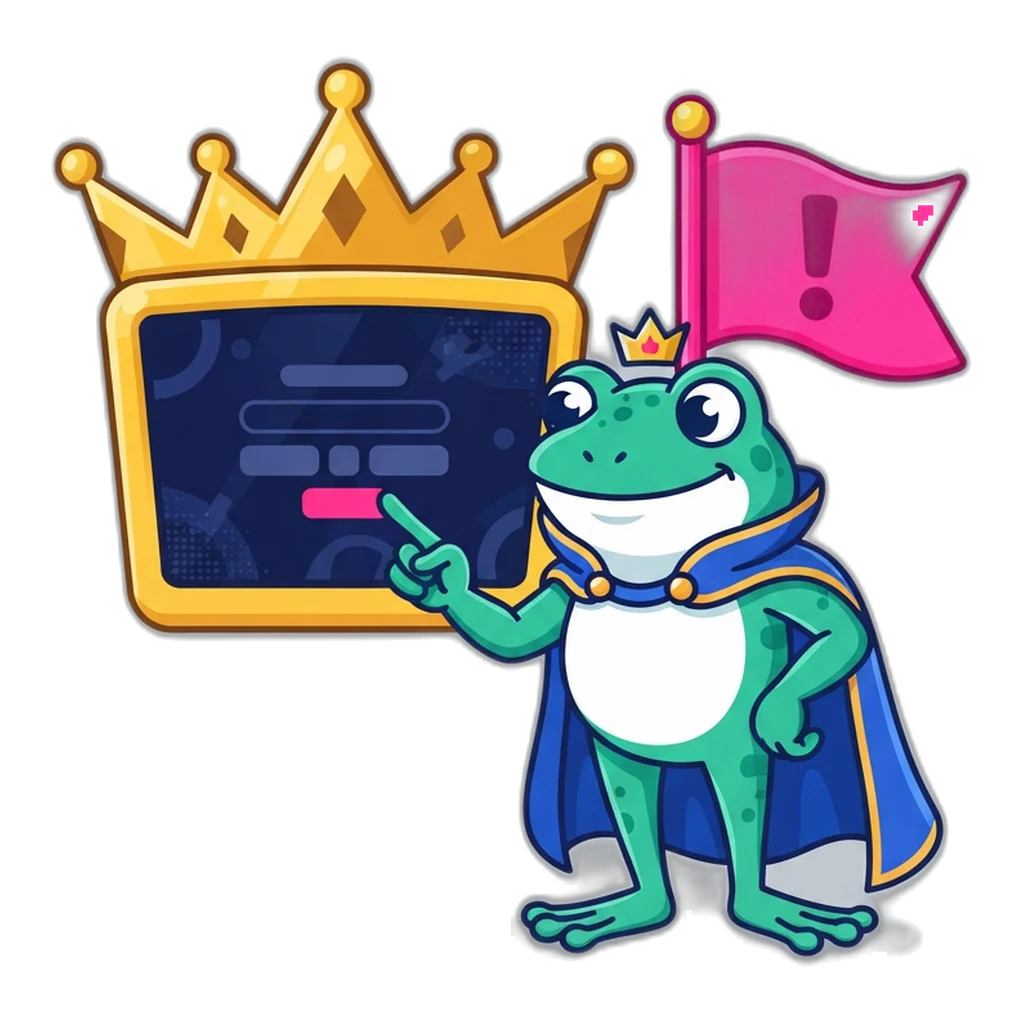
A real sign-in on this site asks for two things only: a username and a password. Use these checks before you type into any page that claims to be a 6E Club login:
- Read the address bar slowly. The official site lives at 6eclub.games. Extra letters, swapped letters or a look-alike spelling are a warning sign, and an account made here only opens here.
- Count the boxes. A box for mobile number, OTP, email, Aadhaar, PAN or UPI ID means you are on the wrong page.
- Watch for money words. Deposits, “recharge to unlock”, withdrawals or prizes have no place here. These games are free and the coins have no cash value.
- Be wary of links from strangers. A link sent in a group chat with a promise of a “VIP login” is a classic phishing move. Type the address yourself or use your own bookmark.
Search results deserve the same care. A sponsored result or a video description that promises a “6E Club login with bonus” is pointing you away from this site, because there is no bonus to claim and nothing to unlock. When in doubt, close the page and open your own bookmark instead.
If you already typed a bank detail, an OTP or a UPI PIN into a look-alike page, act quickly. Call your bank, then call the cyber crime helpline 1930 or file a report on the National Cyber Crime Reporting Portal. Change any password you reused there.
Log Out, Delete or Stay Signed In?
When you finish, you have three choices that do very different things.
- Stay signed in. Fine on a phone that only you use. Next time, the rooms open without any typing.
- Sign out. The best choice when the phone or laptop is used by others. The account, coins and history stay safely in the browser; only the “signed in” marker is removed. Your next 6E Club login brings everything back.
- Delete account. Found at the bottom of the games screen. It removes the account, coins, rank and pick history from this browser for good, after a confirm step. Use it when you will not play here again, or before you give the device away.
On a device several people use, do not let the browser save your password, and check the “signed in” card before playing. Everyone can keep their own username in the same browser.
Signed out and ready for something to do? The rundown of the 6E Club games and rooms explains the colour, number and Big/Small picks, and how the 30-second, 1-minute, 3-minute and 5-minute rooms differ.
Your Account, One Tap Away
Already registered in this browser? Sign in and pick up where you stopped. New here? A free account takes about a minute, with 5,000 play coins and no phone number. Adults 18+ only.
Sign In With a Stop Time
Signing in is easy, and the rooms run all day, so the moment you tap Sign in is a good moment to decide when you will stop. Pick a time or a number of rounds before the first room opens, not after.
Use Sign out as your finish line. Signing out at the end of a session makes the next start a conscious choice instead of a reflex tap. If you notice you are signing in late at night, during work, or to shake off a bad mood, take a few days off. Free, private support is available from Tele MANAS on 14416.
Adults 18+ only. Play coins on 6E Club are a free game balance with no price and no cash value, and every result is a fresh random draw that nobody can see in advance. Online money games have been against the law across India since 1 May 2026 (Promotion and Regulation of Online Gaming Act, 2025). See the session length tips for time limits, breaks and free help.
Login Questions
Why does my 6E Club login work on my phone but not on my laptop?
Your account was made inside the phone’s browser, and that is the only place it exists. The laptop has never seen it. Nothing is wrong with your details: either keep playing on the phone, or make a separate account on the laptop.
Is the username case-sensitive when I sign in?
No. The form changes every username to lowercase before it checks it, so “Raju_07” and “raju_07” are the same account. The password is different: it must match exactly, including capital letters.
Can someone at 6E Club look up my password for me?
No. The password is never saved as readable text, and nothing is sent to a server, so there is no record anywhere that a person could read. If it is gone, create a new account in the same browser.
I switched from Chrome to another browser on the same phone. Where did my account go?
It is still in Chrome. Each browser app keeps its own storage, so the new browser starts empty. Open the site in Chrome again and sign in there.
Does the login page ever ask for an OTP?
Never. Signing in needs a username and a password, nothing else. A page that sends you a code by SMS, or asks for a mobile number, is not this site’s sign-in page.
Will I stay signed in after closing the tab?
Usually yes, in a normal browser window, until you tap Sign out or clear the site’s data. In a private or incognito window, or when the browser blocks site storage, everything ends when the tab closes.
Final Word on the 6E Club Login
Every 6E Club login comes down to one idea: the account lives in the browser where you made it. Open that browser, ideally from a bookmark or home-screen tile, type your username and exact password, and the rooms are yours. If the account cannot be found, check the browser, the device and private mode before anything else. If the password is gone, a new account is a minute away.
Keep the address in your own bookmarks, never type an OTP or payment detail into a page that claims to be this one, and log out on shared devices. For an overview of everything else on the site, the 6E Club games home lists every guide in one place.